Introduction
You are going to import a relational dataset into your Neo4j Aura instance using the Import tool.
You will:
-
Create a new graph data model from the Northwind dataset
-
Explore and import a pre-built Northwind graph data model
-
Learn how to build a graph data model in stages by mapping tables to nodes and relationships
Northwind Dataset
The Northwind dataset contains data about a fictional company called Northwind Traders, which imports and exports specialty foods from around the world.
The dataset contains tables for Customers, Orders, Products, Categories, and Employees.
erDiagram
CATEGORIES {
int categoryID PK
string categoryName
string etc
}
CUSTOMERS {
string customerID PK
string companyName
string etc
}
EMPLOYEES {
int employeeID PK
string firstName
string lastName
int reportsTo FK
string etc
}
PRODUCTS {
int productID PK
string productName
int supplierID FK
int categoryID FK
decimal unitPrice
string etc
}
ORDERS {
int orderID PK
string customerID FK
int employeeID FK
datetime orderDate
string etc
}
ORDER_DETAILS {
int orderID FK
int productID FK
decimal unitPrice
int quantity
}
SUPPLIERS {
int supplierID PK
string companyName
string etc
}
SHIPPERS {
int shipperID PK
string companyName
string etc
}
REGIONS {
int regionID PK
string regionDescription
}
TERRITORIES {
string territoryID PK
string territoryDescription
int regionID FK
}
EMPLOYEE_TERRITORIES {
int employeeID FK
string territoryID FK
}
%% Relationships
CATEGORIES ||--o{ PRODUCTS : "categorizes"
SUPPLIERS ||--o{ PRODUCTS : "supplies"
CUSTOMERS ||--o{ ORDERS : "places"
EMPLOYEES ||--o{ ORDERS : "handles"
EMPLOYEES ||--o{ EMPLOYEES : "reports to"
SHIPPERS ||--o{ ORDERS : "ships"
ORDERS ||--o{ ORDER_DETAILS : "contains"
PRODUCTS ||--o{ ORDER_DETAILS : "included in"
REGIONS ||--o{ TERRITORIES : "contains"
EMPLOYEES ||--o{ EMPLOYEE_TERRITORIES : "assigned to"
TERRITORIES ||--o{ EMPLOYEE_TERRITORIES : "covers"Create a graph data model
Your task is to:
-
Download the Northwind dataset
-
Create a new graph data model in the Import tool
-
Open the Northwind dataset
-
Review the source data and graph data model
Continue with the lesson to create the graph data model
Import the Northwind dataset
You need to download the Northwind dataset and create a new blank graph data model:
-
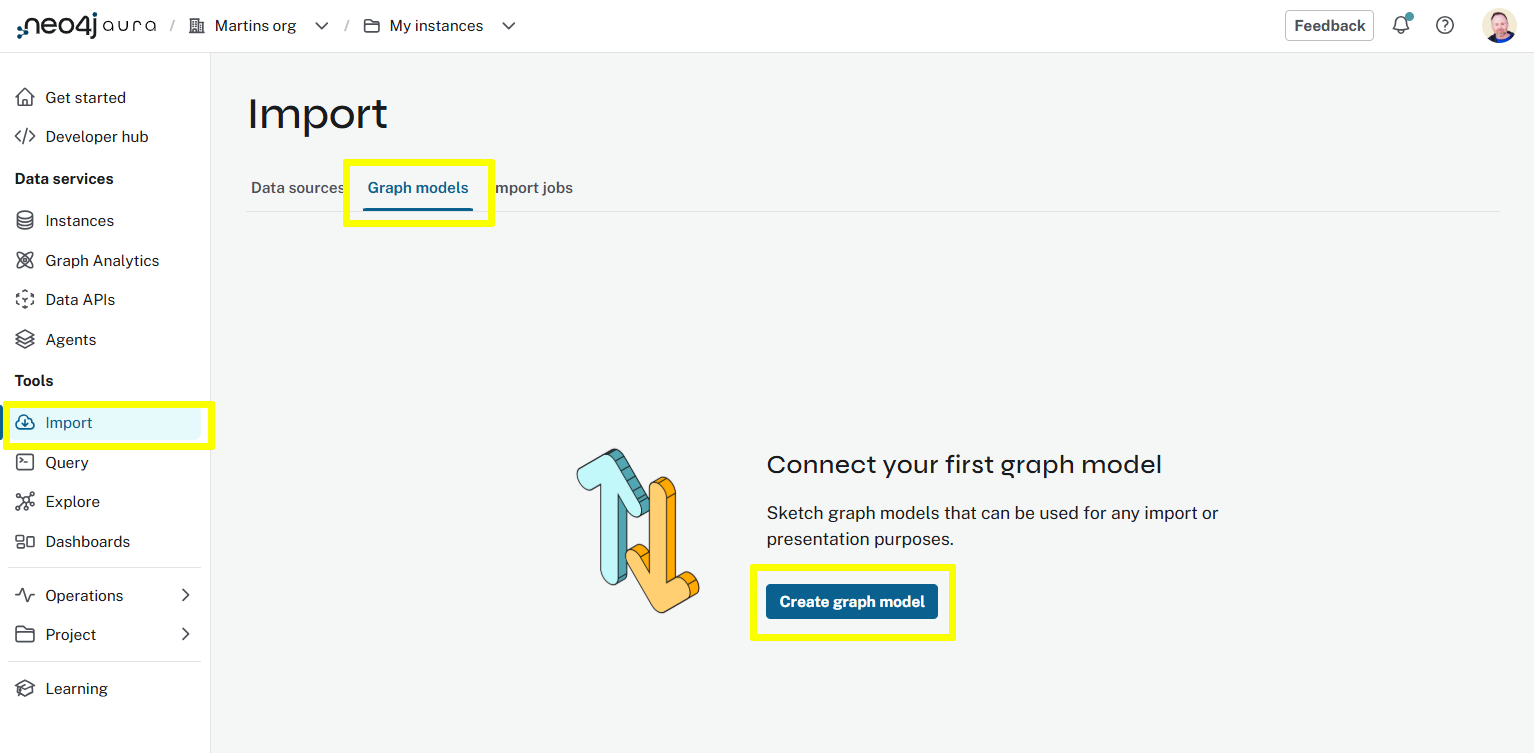
Open the Import tool in Aura and select Graph Models.
Open Import Tool →
-
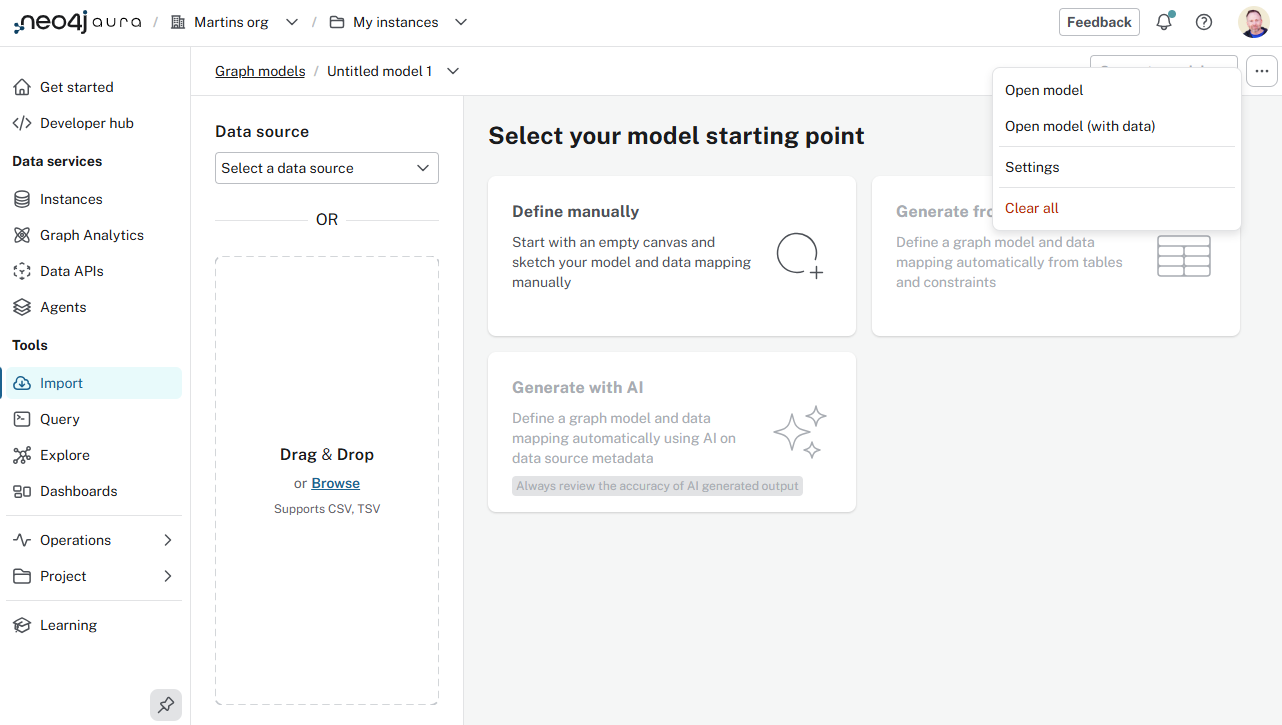
Create a new graph data model.
-
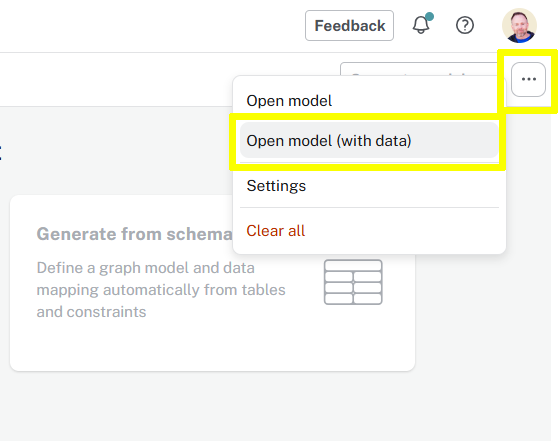
Use the
…menu toOpen model (with data)and select thenorthwind-complete.zipfile you downloaded.
-
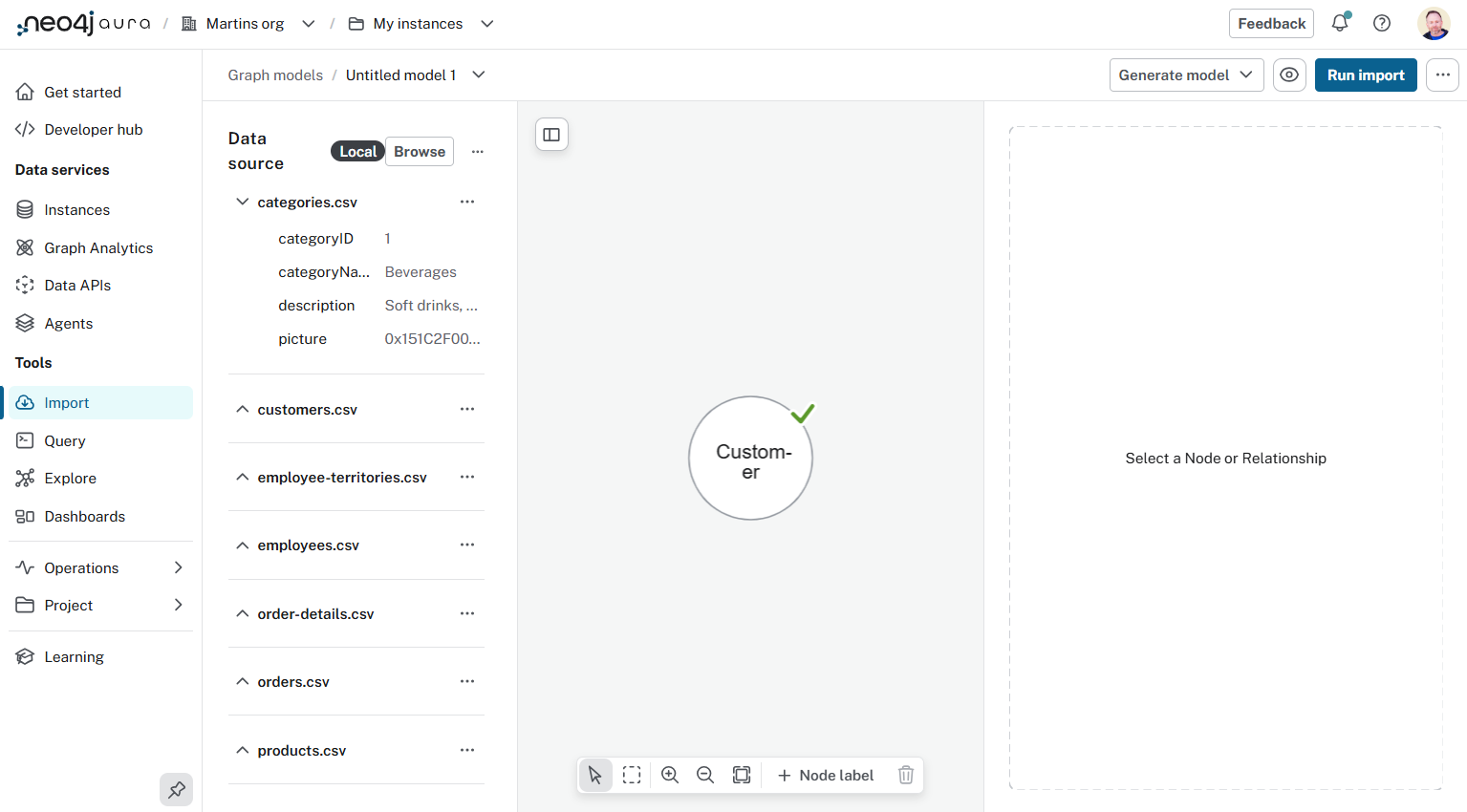
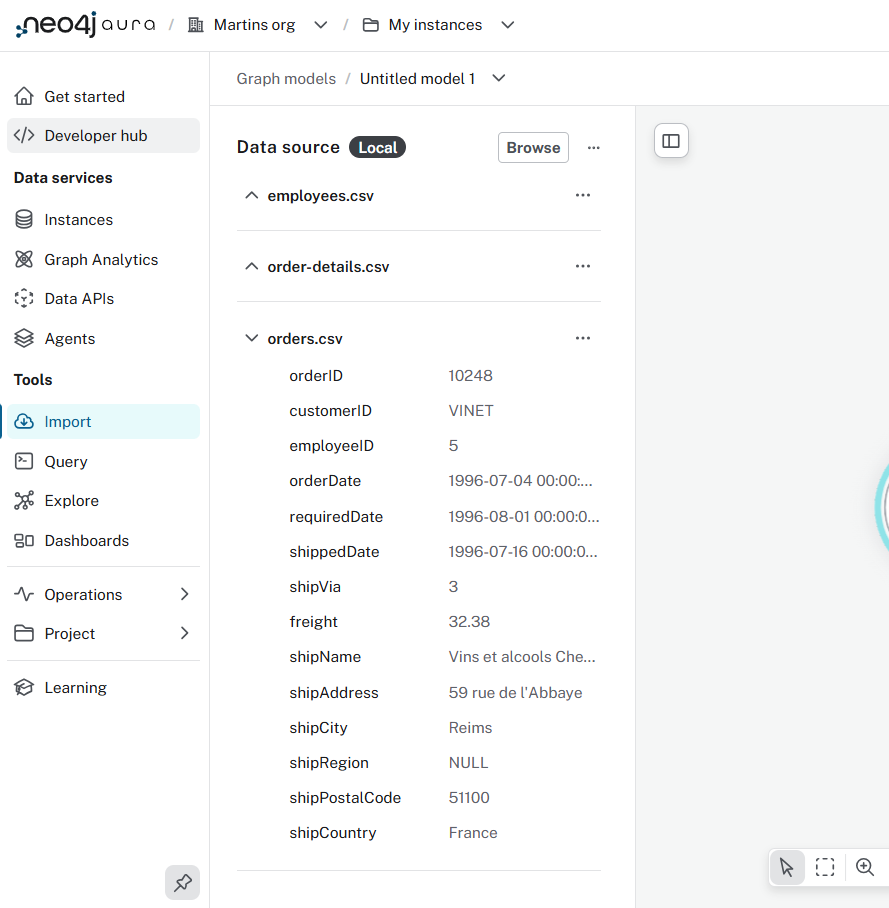
You will see the tables (csv files) in the left-hand panel, and a graph data model of the Northwind dataset.
Review the Data Model
Review the data source tables and try to identify:
-
What tables will become Node labels
-
The associated relationships between tables through their primary/foreign keys
-
What fields will become properties on nodes and relationships
Northwind Graph Data Model
Here is the complete graph data model for the Northwind dataset.
How does it compare to your thoughts after reviewing the source data?
graph TD
Territory -->|IN_REGION| Region
Supplier -->|SUPPLIES| Product
Product -->|PART_OF| Category
Shipper -->|SHIPS| Order
Customer -->|PURCHASED| Order
Employee -->|SOLD| Order
Employee -->|IN_TERRITORY| Territory
Employee -->|REPORTS_TO| Employee
Order -->|ORDERS<br/>unitPrice<br/>quantity<br/>discount| Product
Territory(("<b>Territory</b>"))
Region(("<b>Region</b>"))
Supplier(("<b>Supplier</b>"))
Shipper(("<b>Shipper</b>"))
Product(("<b>Product</b>"))
Category(("<b>Category</b>"))
Order(("<b>Order</b>"))
Customer(("<b>Customer</b>"))
Employee(("<b>Employee</b>"))Load the data
You task is to:
-
Explore the graph data model to understand how the source data maps to the graph
-
Run the import to create data model
-
Query the graph to see the imported data
Continue with the lesson to create the graph data model
Customer node
Find the Customer node in the graph data model.
Select the Customer node in the graph data model and review the data model in the right hand panel.
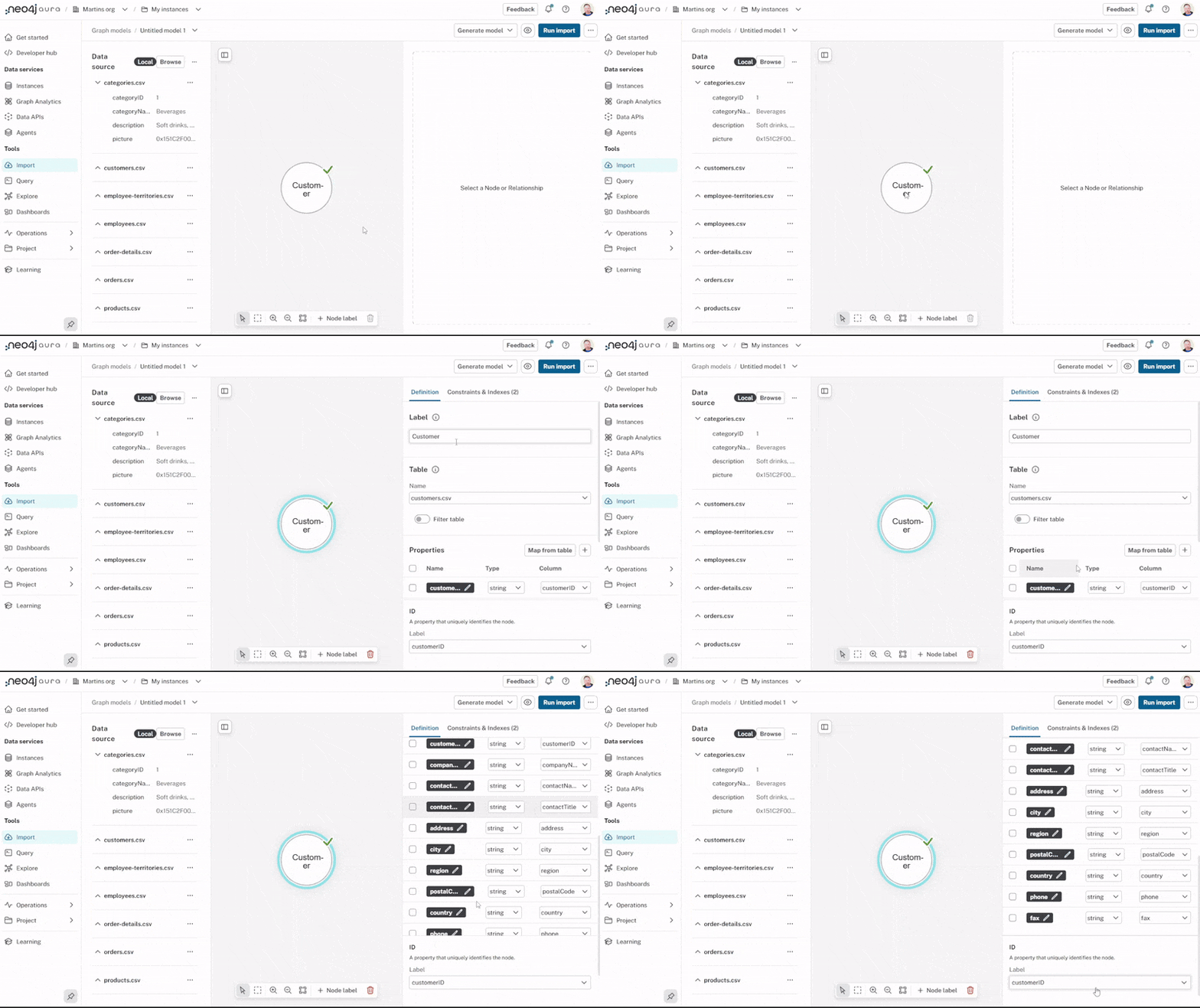
Zoom in
You will have to zoom in on the graph data model to see the node labels and relationship types.
You should be able to identify the following:
-
The node label -
Customer. -
The source table -
customers.csv. -
The node properties - the
name, what datatypeis used, and whatcolumnfrom the source table is used for each property. -
What property is used as the unique ID for the node label -
customerId.
This mapping is how the import tool creates the graph data model from the source data.
Nodes and relationships
Review the other nodes and relationships in the graph data model and identify how the source data maps to the graph.
Try to identify:
-
What tables become node labels
-
What tables become relationships
-
What fields become properties on nodes and relationships
Run the import
Run the import to create the graph data model:
-
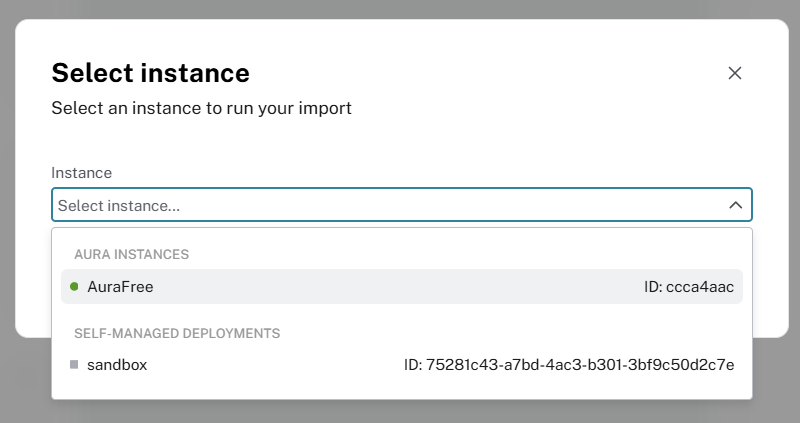
Click Run Import
-
Select your instance
-
Enter your instance credentials (if required)
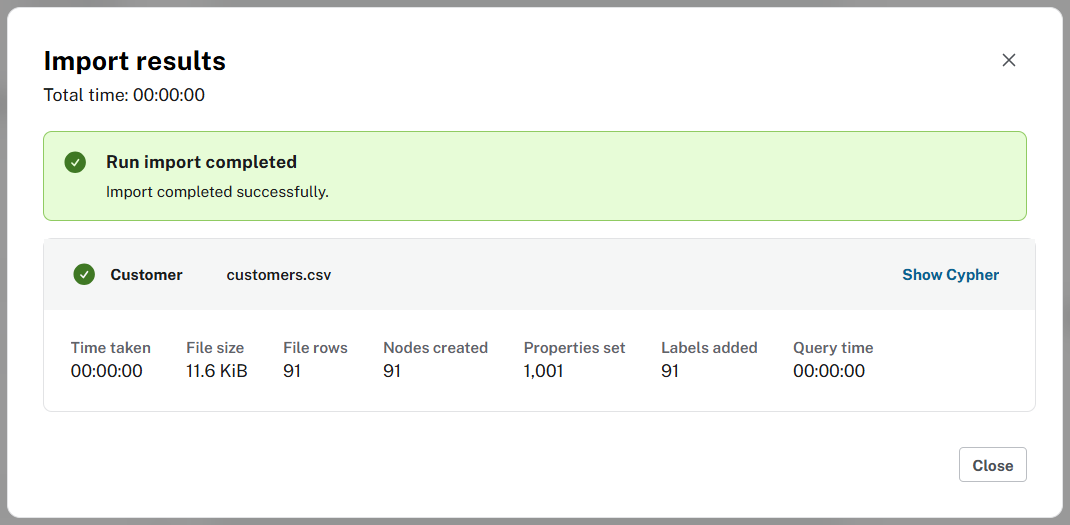
-
A summary of the import will be displayed
Query the graph
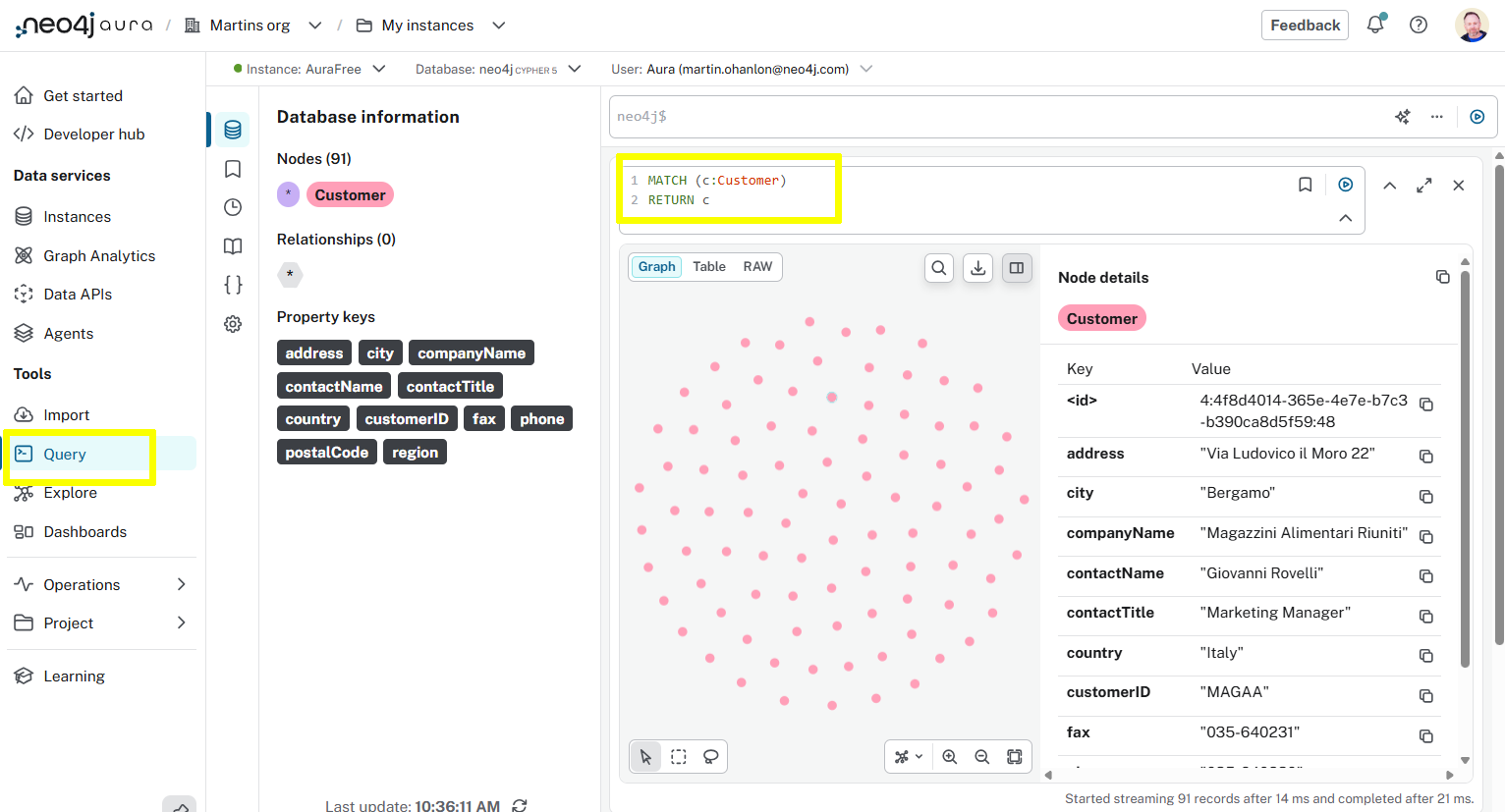
You can view the data in the graph using the Query tool.
Run the following query to return the Customer nodes:
MATCH (c:Customer)
RETURN c
Experiment with the data
Try running some queries to explore the data. For example:
MATCH (c:Customer)-[p:PURCHASED]->(o:Order)
RETURN c.companyName, o.orderID, o.orderDateMATCH (c:Customer)-[p:PURCHASED]->(o:Order)-[orders:ORDERS]->(product:Product)
WHERE c.customerID = "ERNSH"
RETURN c, p, o, orders, productMATCH (e:Employee)-[it:IN_TERRITORY]->(t:Territory)-[ir:IN_REGION]->(r:Region)
RETURN e, it, t, ir, rLesson Summary
In this lesson, you imported customer data from the Northwind dataset and started to build a graph data model.
In the next lesson, you will continue to build the graph data model by adding Order nodes and PURCHASED relationships between customers and orders.