Import the Northwind dataset
You need to download the Northwind dataset and create a new blank graph data model:
-
Open the Import tool in Aura and select Graph Models.
Open Import Tool →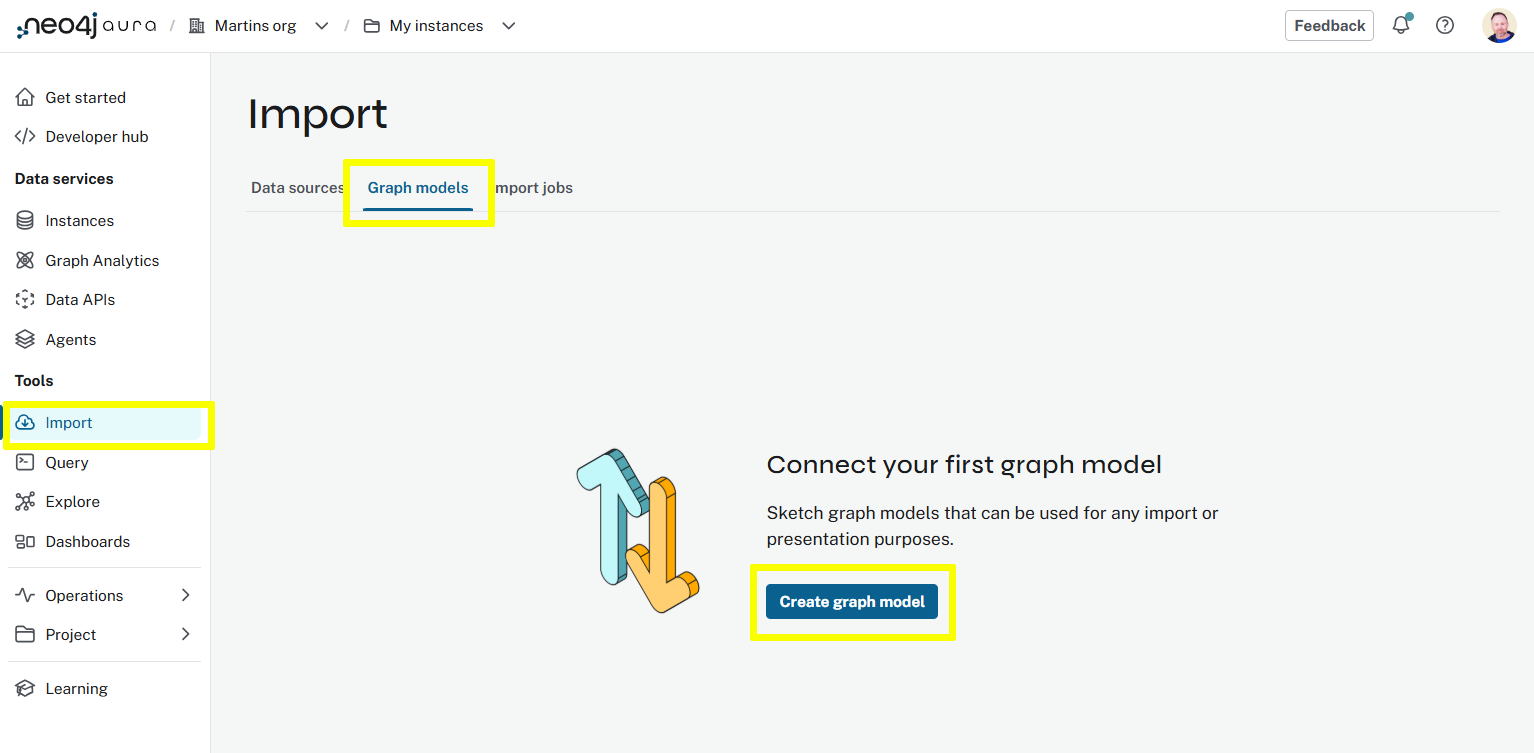
-
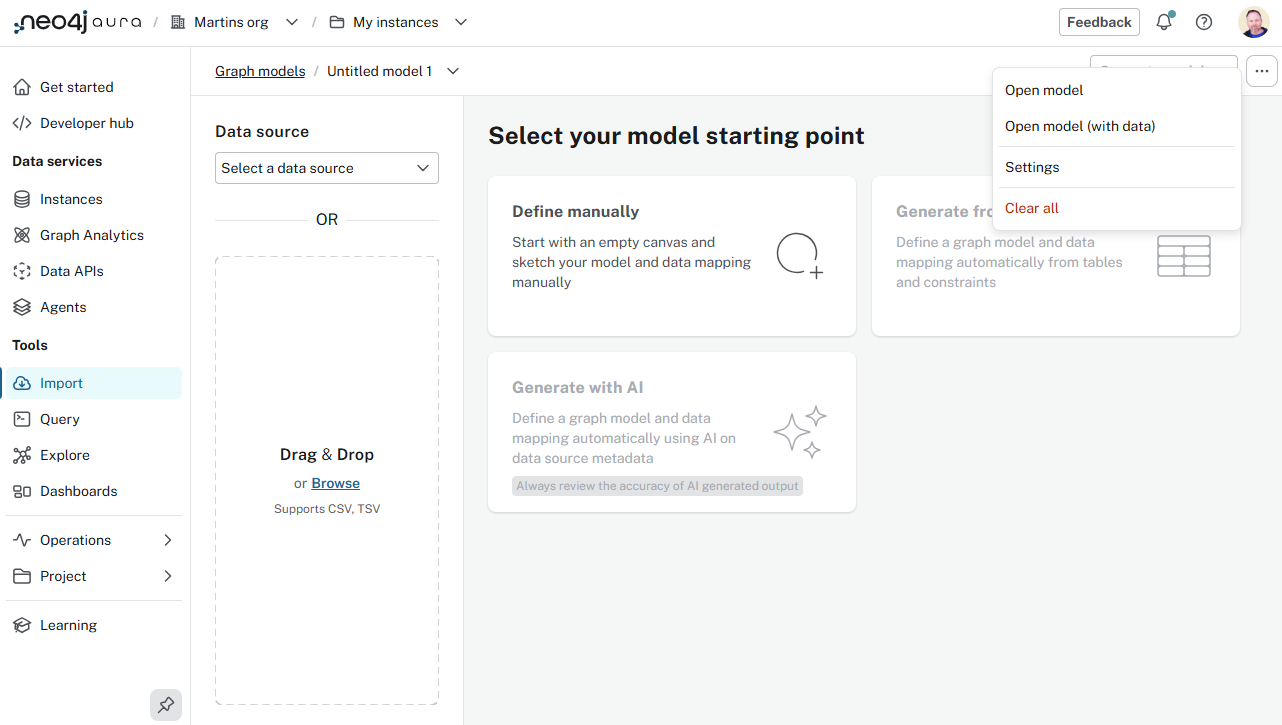
Create a new graph data model.
-
Use the
…menu toOpen model (with data)and select thenorthwind-customer.zipfile you downloaded.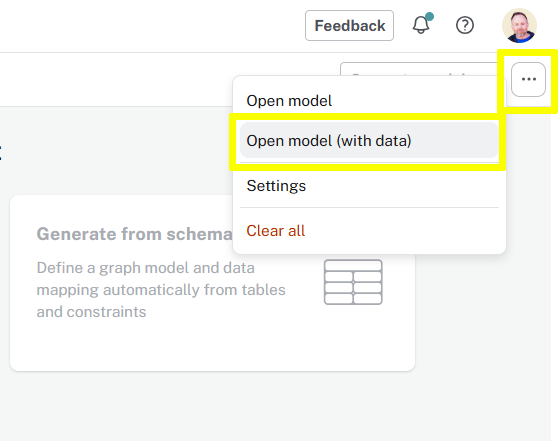
-
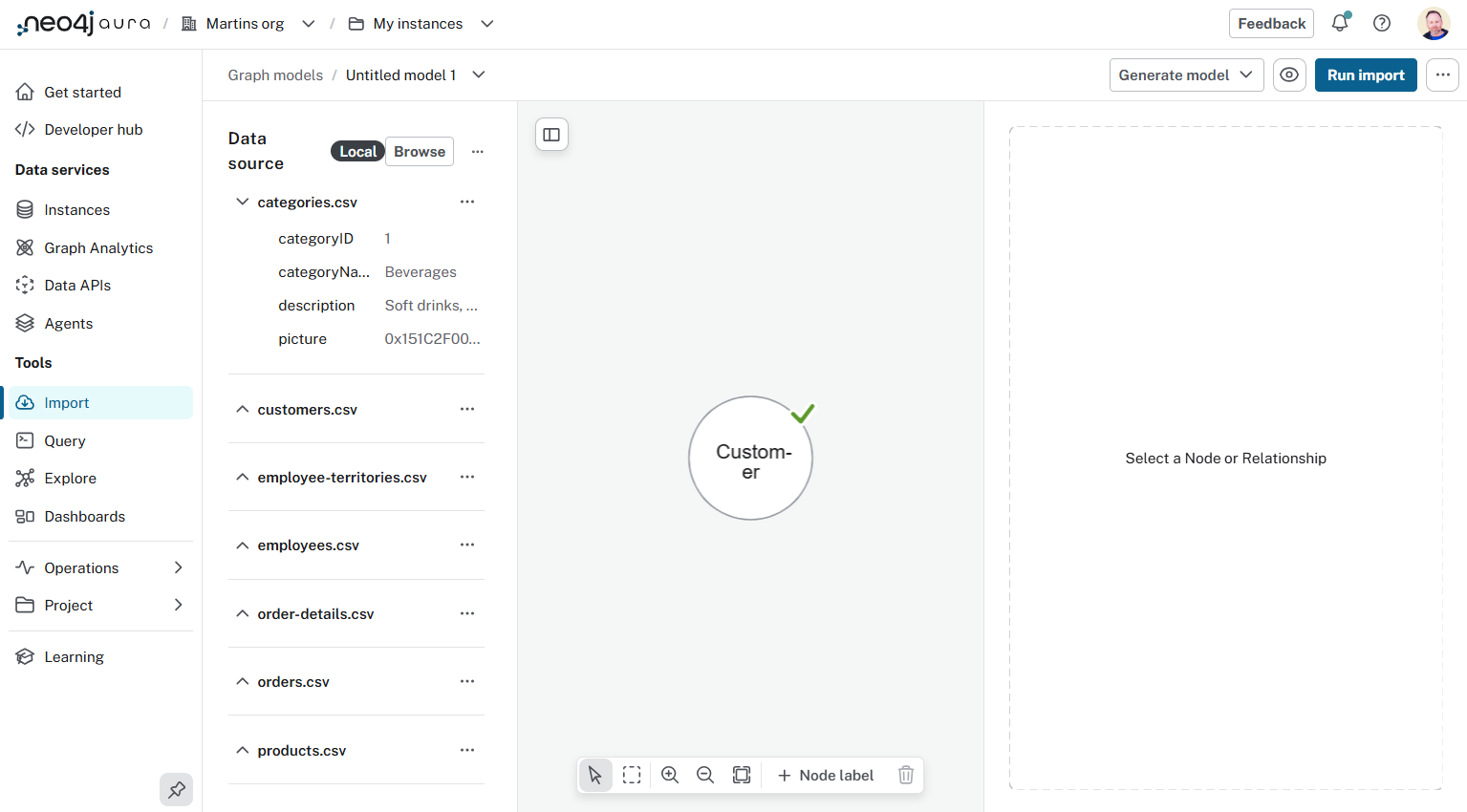
You will see the tables (csv files) from the Northwind dataset in the left-hand panel, and a single Customer node in the graph data model.
Nodes
The Customer node has already been created for you.
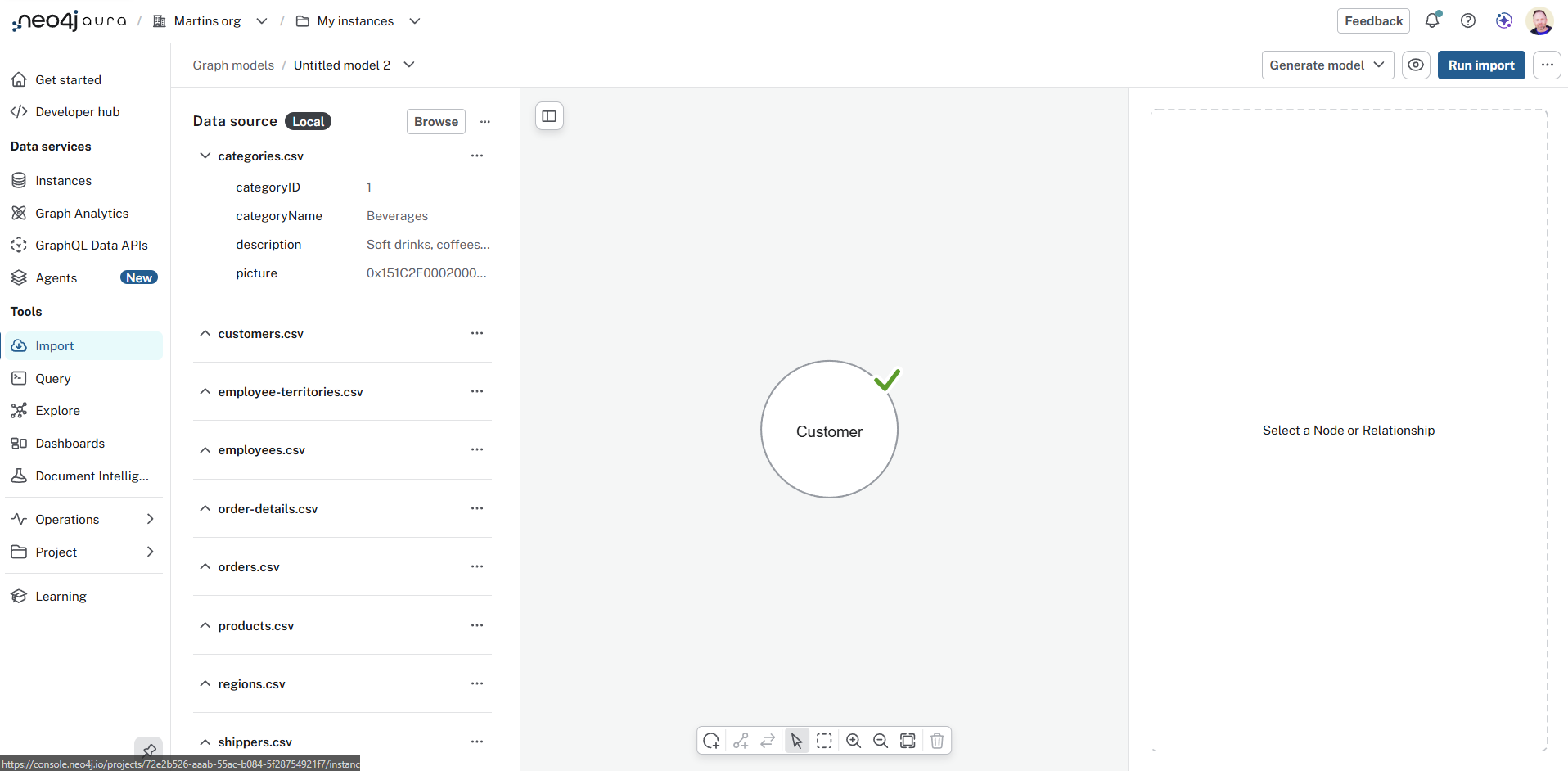
You are going to create the Order nodes:
-
Create a new Node label -
Order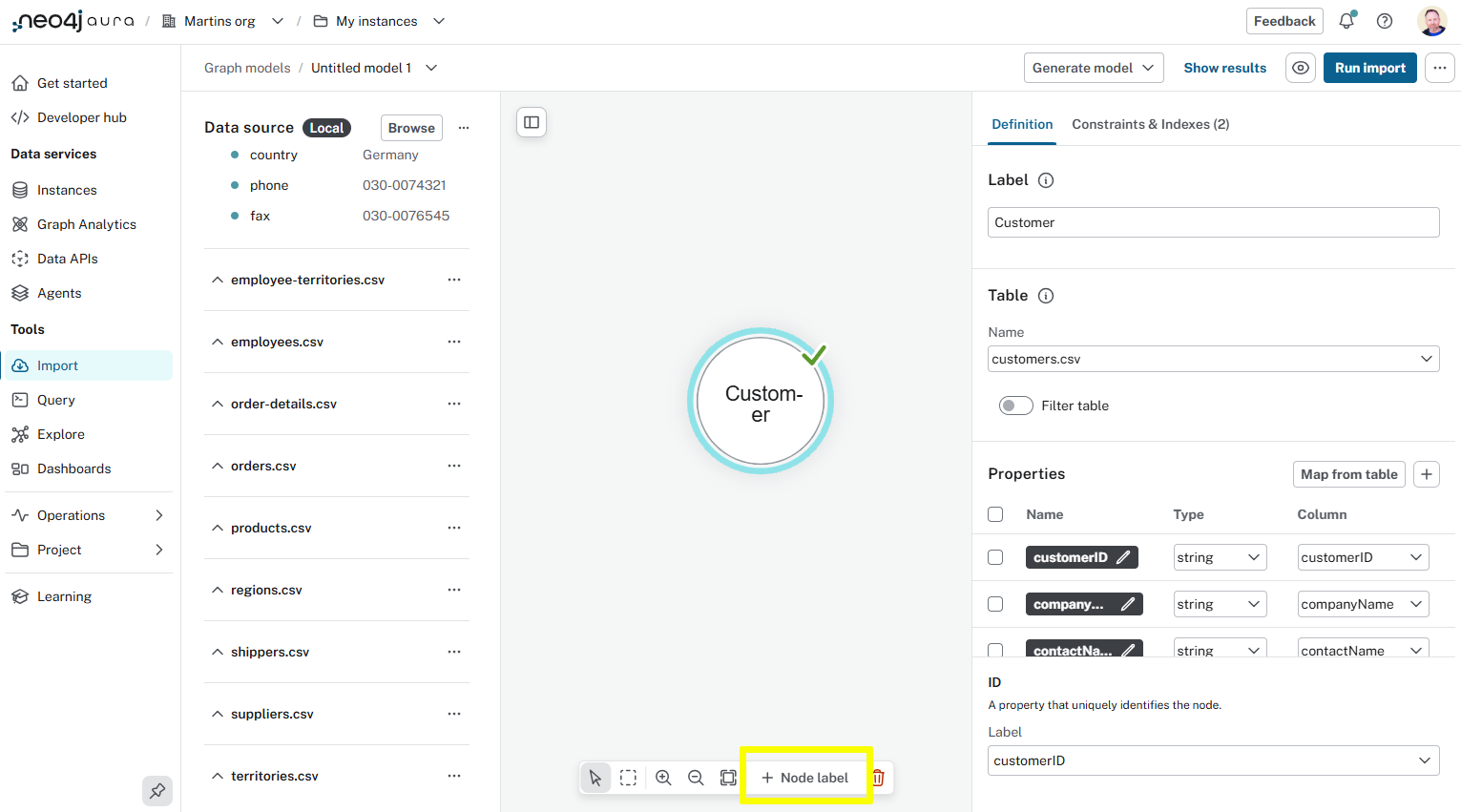
-
Add the
Orderas the Label -
Select
orders.csvas the Table -
Use the Map from table function to create the properties:
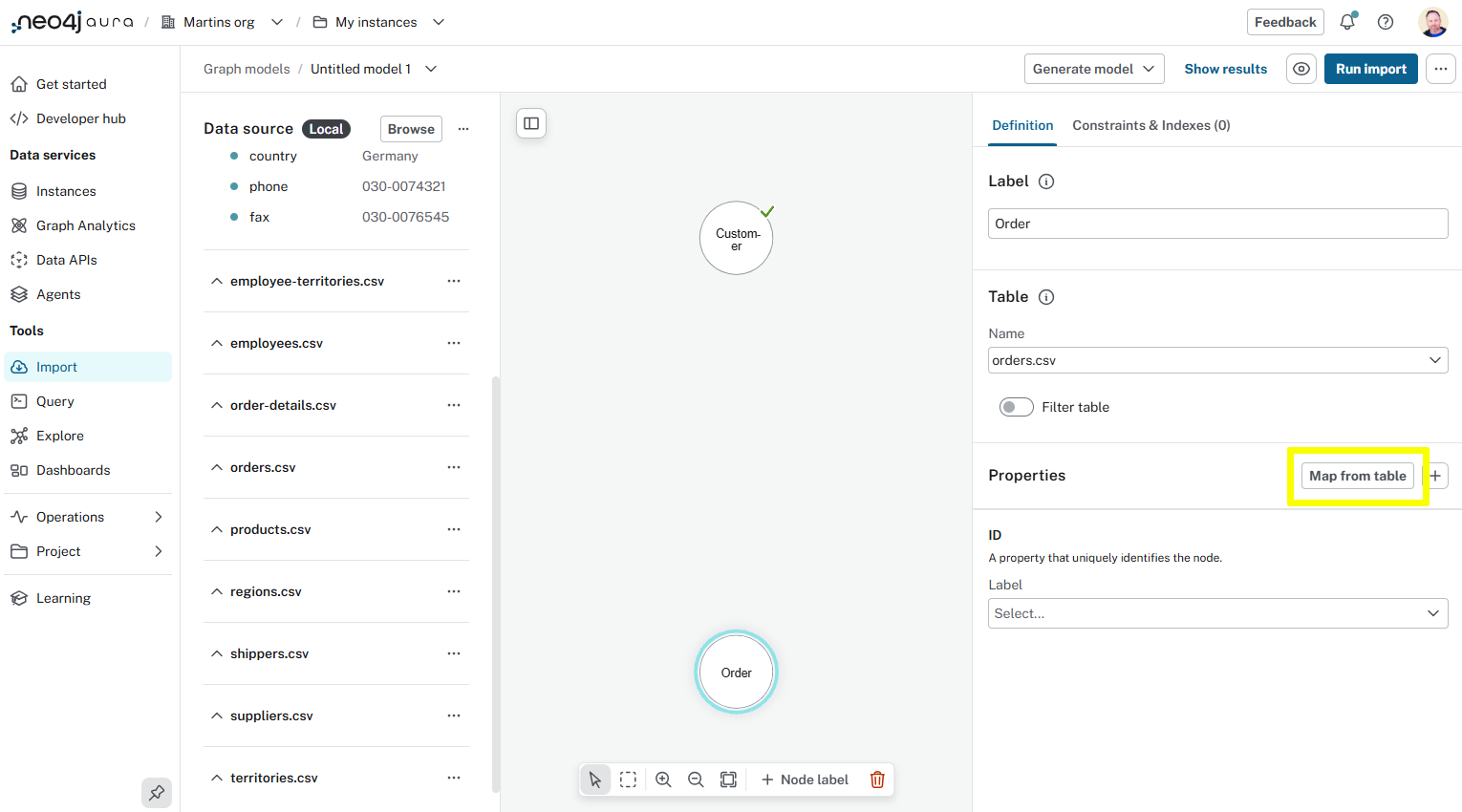
-
Select all the columns, except the
customerIdandemployeeId.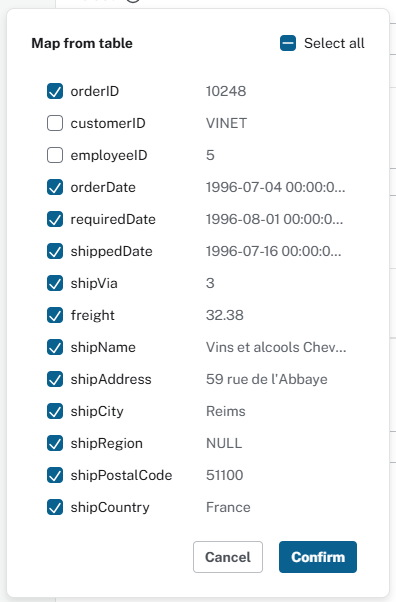
When you confirm the mapping, the properties, their data types, and column will be automatically mapped.
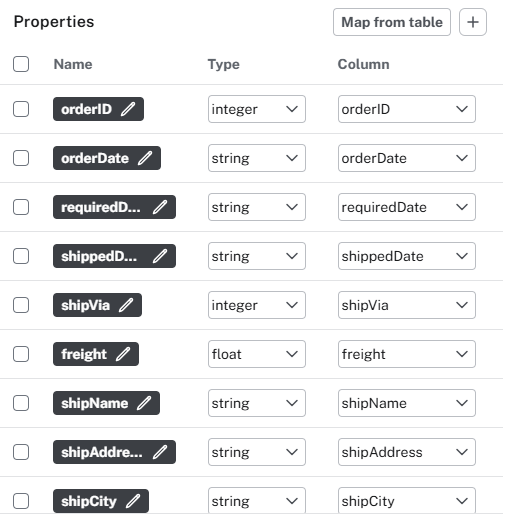
-
The
orderIdproperty should be selected as the unique ID. -
Run the import to create the
CustomerandOrdernodes.
View the orders in the graph:
MATCH (o:Order)
RETURN o
LIMIT 100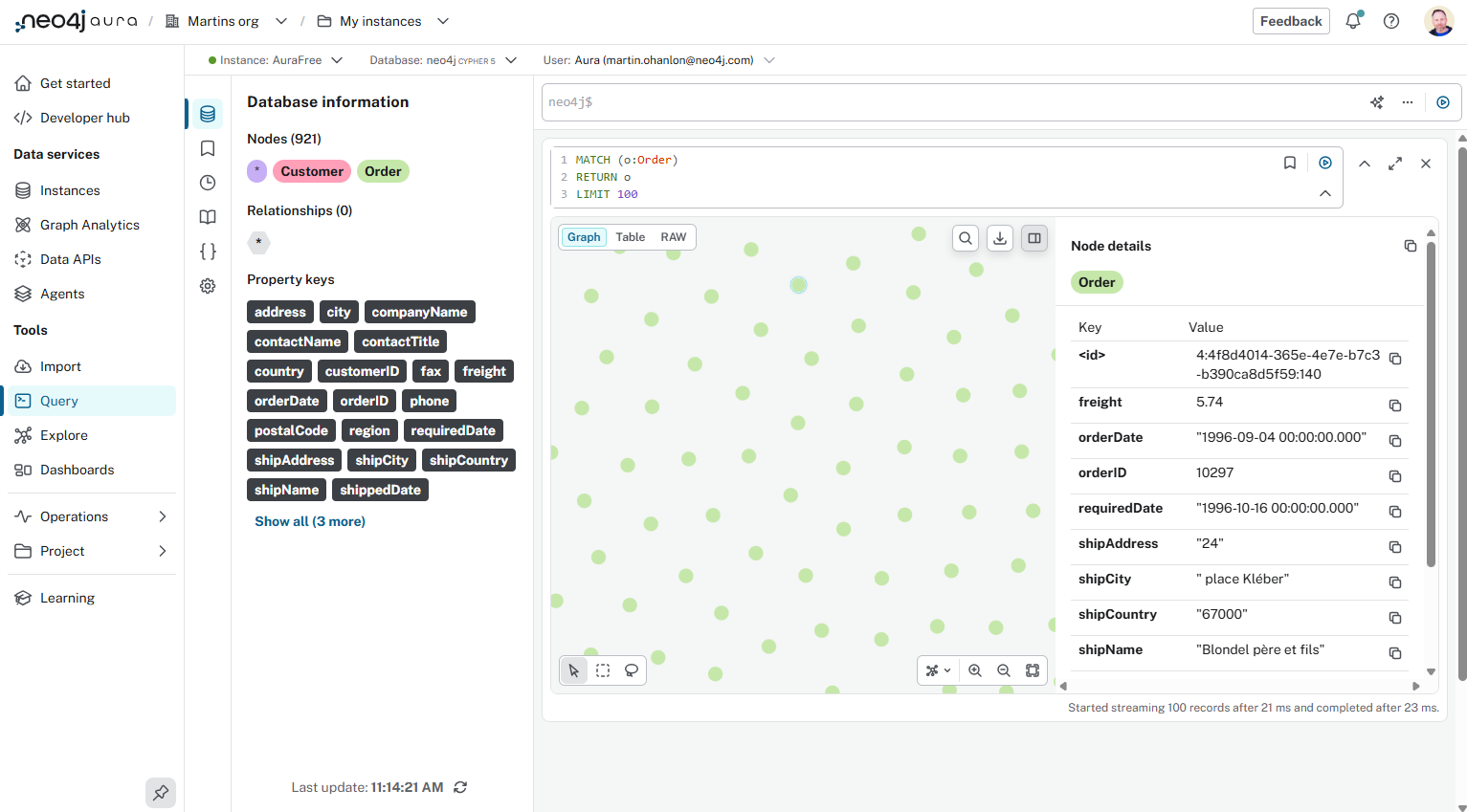
Relationships
You can now create the (Customer)-[:PURCHASED]→(Order) relationship.
-
Drag a relationship from the
Customernode to theOrdernode.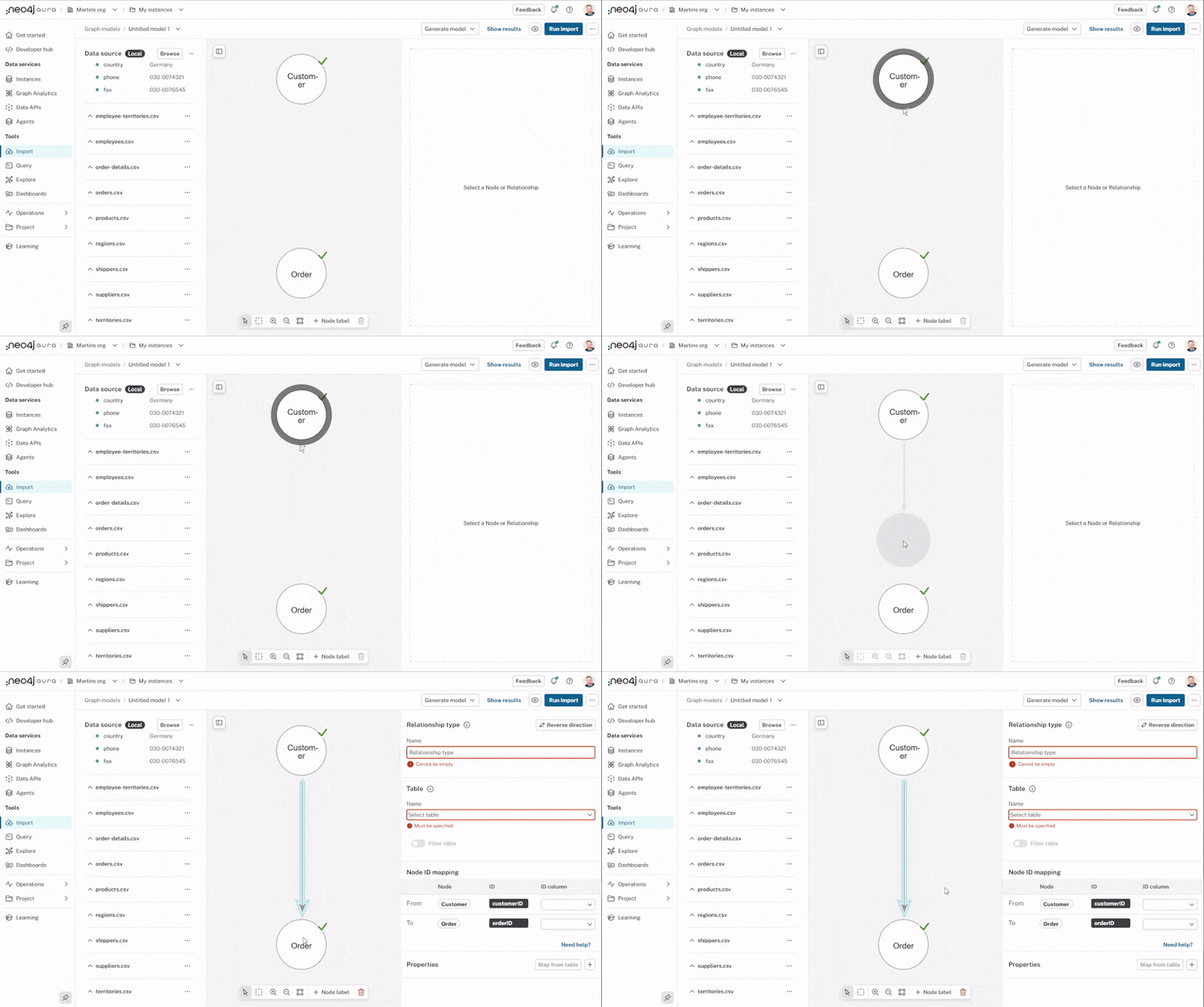
-
Set the Relationship Type to
PURCHASED -
Select
orders.csvas the Table -
The Node ID mapping tells Import how to connect the nodes.
-
Select
customerIDfrom the theCustomernode -
Select
orderIDfrom theOrdernode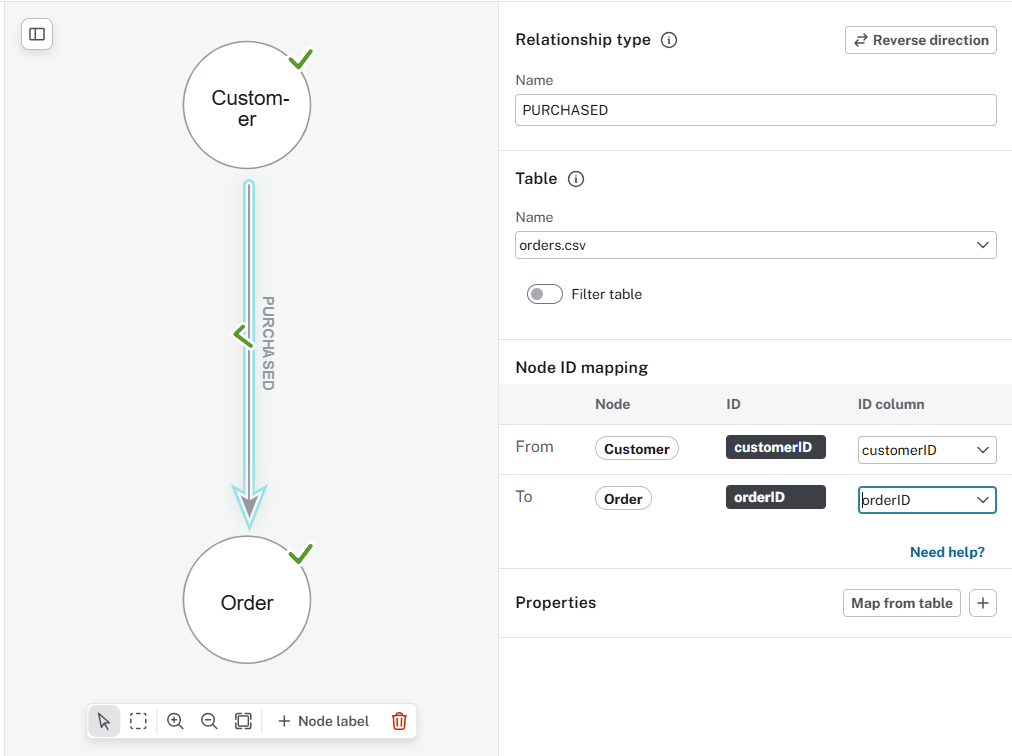
-
-
Run the import
Need a working solution?
To update the graph data model with the solution, you can:
-
Open Query and delete all the data from your instance:
cypherMATCH (n) DETACH DELETE n -
Download the Customer-PURCHASED-Order data model - northwind-customer-order.zip.
-
Use the
…menu, select Open Model (with data), and select the northwind-customer-order.zip file you downloaded.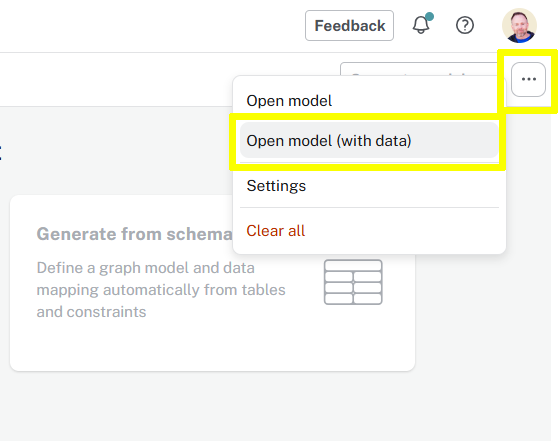
-
Run the import.
When you have added the Order nodes and PURCHASED relationships you can view the customer’s orders:
MATCH (c:Customer)-[p:PURCHASED]->(o:Order)
RETURN c,p,o
LIMIT 100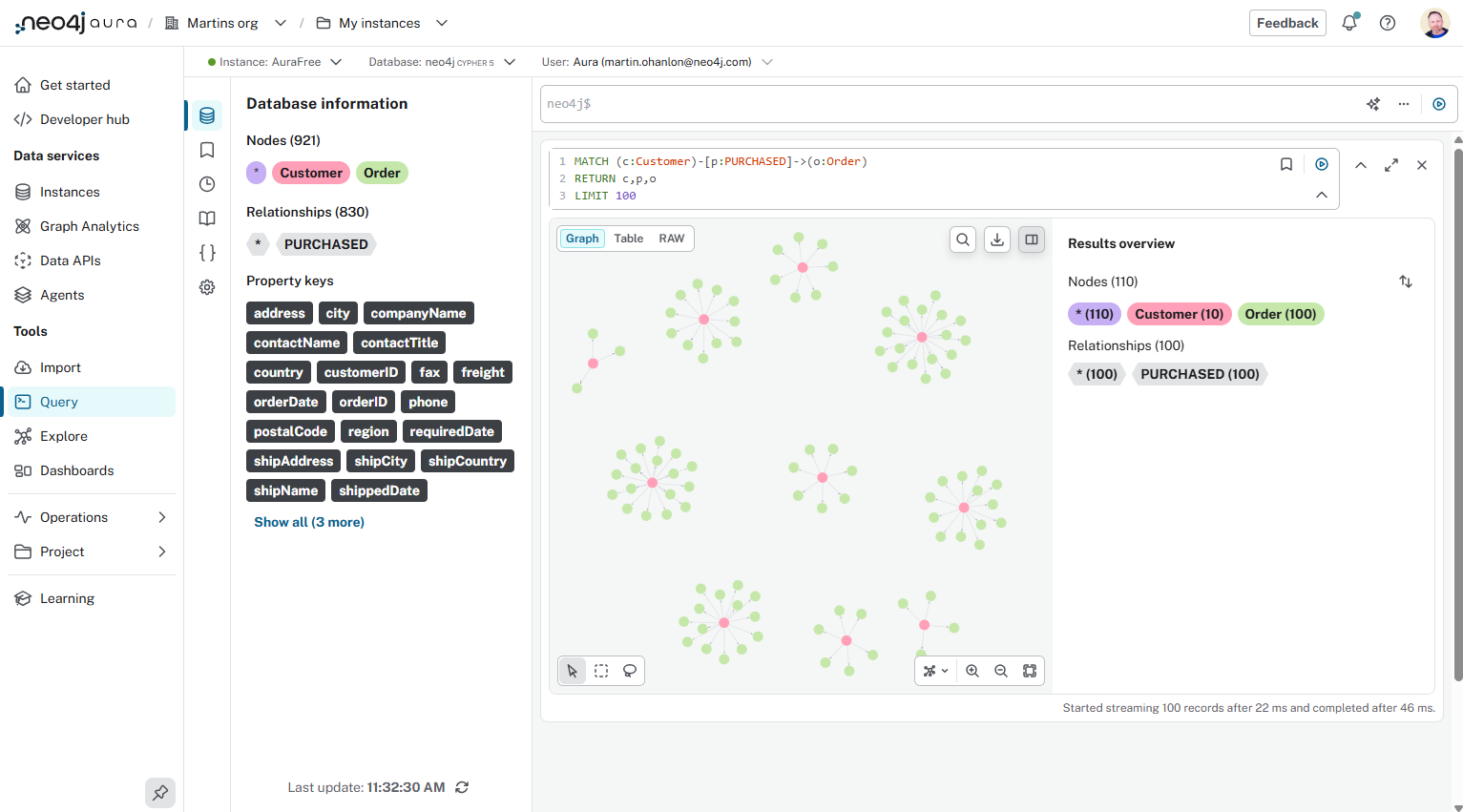
This process of adding nodes and relationships to the graph data model, and mapping them to source data, can be repeated to continue to extend the graph with more data.
Challenge
Your task is to add the Product nodes and ORDERS relationship to Order nodes.
graph TD
    Order -->|ORDERS<br/>unitPrice<br/>quantity<br/>discount| Product

    Product(("<b>Product</b>"))

    Order(("<b>Order</b>"))
To include the product nodes you will need to:
-
Add a new
Productnode label importing fromproducts.csv -
Map the properties from the table
-
Set the
productIdas the unique ID.
To create the relationship from Order to Product:
-
Drag a new relationship from
OrdertoProductwith typeORDERS -
Use
order-details.csvas the source table. -
Use the
orderIDandproductIDfor the node ID mapping. -
Map the
unitPrice,quantityanddiscountas relationship properties.
Need a working solution?
To update the graph data model with the solution, you can:
-
Open Query and delete all the data from your instance:
cypherMATCH (n) DETACH DELETE n -
Download the Customer-Order-Product data model - northwind-customer-order-product.zip.
-
Use the
…menu, select Open Model (with data), and select the northwind-customer-order-product.zip file you downloaded.
-
Run the import.
When you have added the customer’s purchased products, you can view the customers complete product orders:
MATCH (c:Customer)-[p:PURCHASED]->(o:Order)-[or:ORDERS]->(pr:Product)
RETURN c,p,o,or,pr
LIMIT 100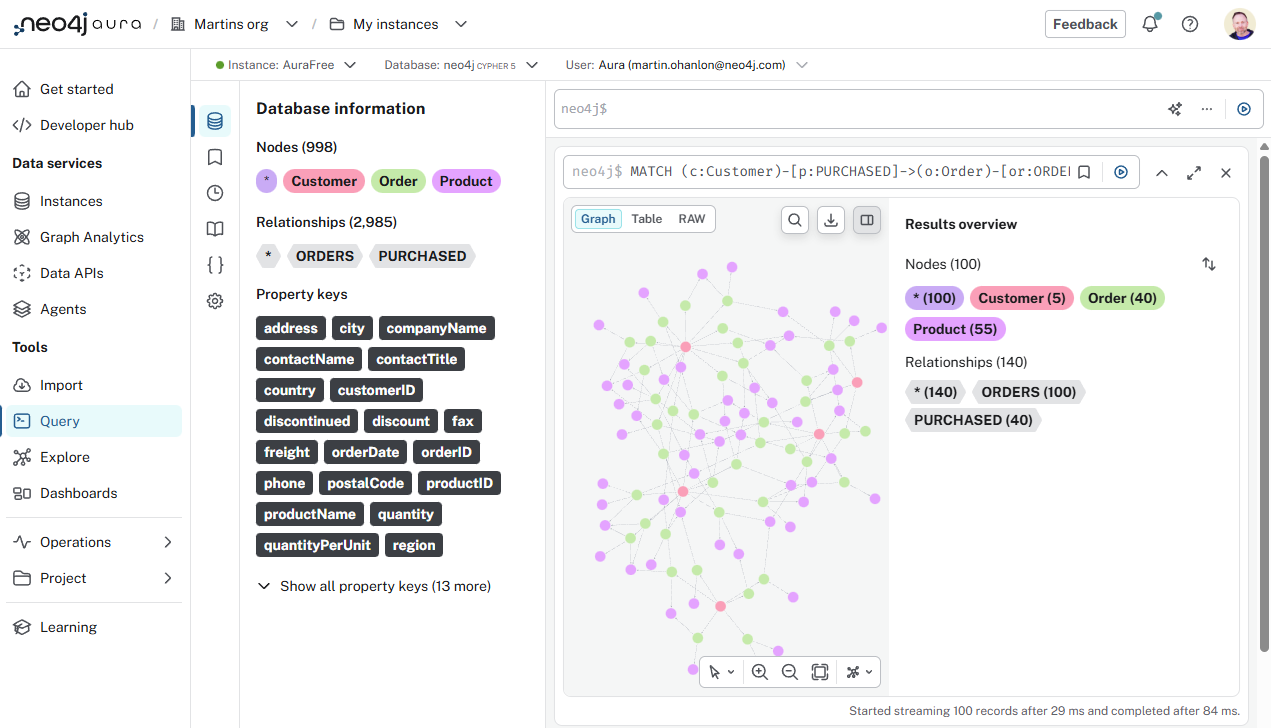
Lesson Summary
In this lesson, you learned how to use the Import tool to create a graph data model and map source data.
In the next module, you will learn how to work with your graph database using the Aura Explore, Dashboard, and Agent tools.