In the previous lesson you added cards with AI and Cypher and a filter.
In this lesson you will learn:
-
How to add a new dashboard page and name it
-
How to import, export, a dashboard
Creating a new dashboard page
Dashboards can have multiple pages, allowing you to organize your dashboard into different sections. For example, you could have one page for executive stakeholders with high-level metrics and another page for data analysts with more detailed visualizations.
To create a new dashboard page, go to the Dashboards menu and click on the New page button:
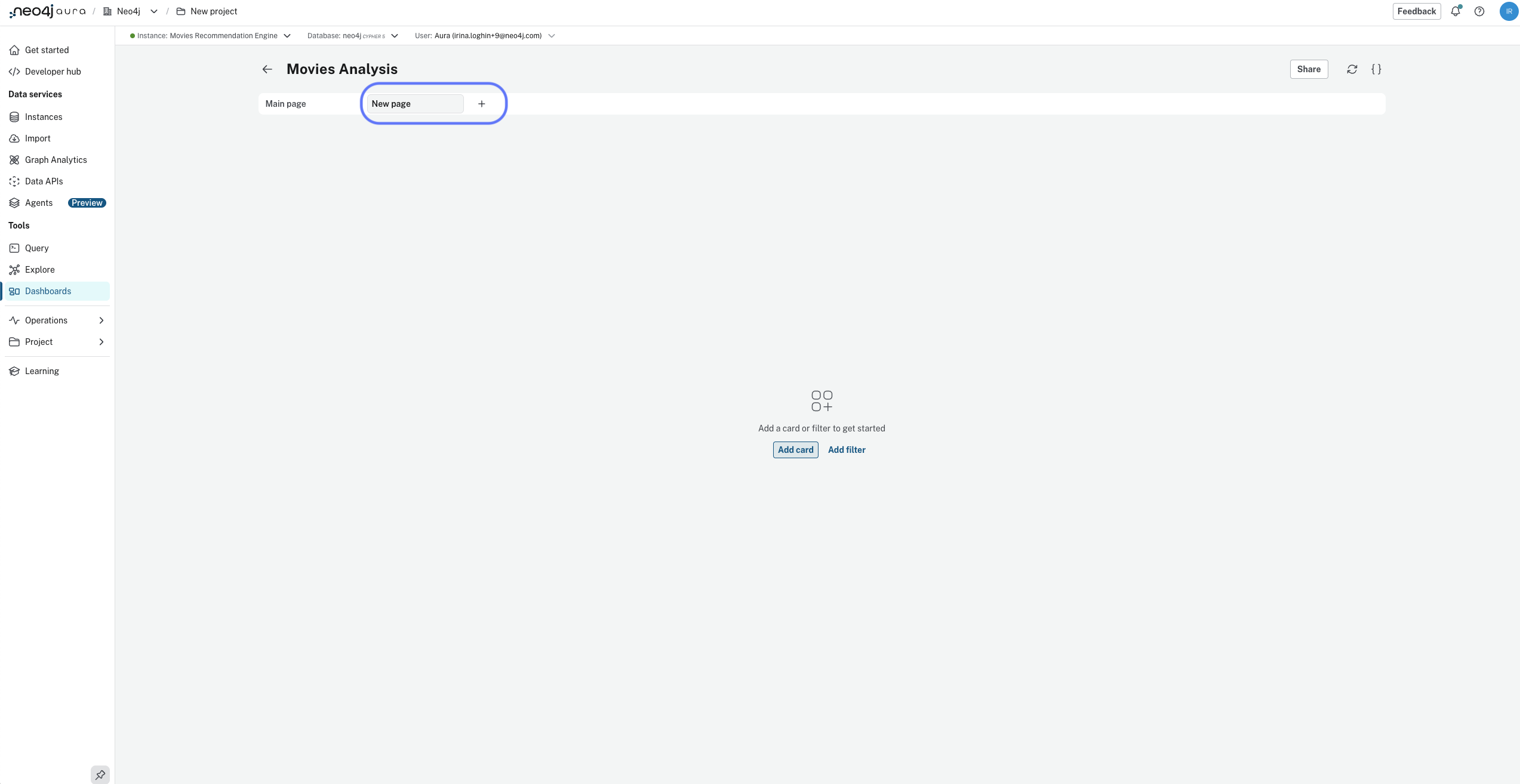
Give the page a clear name, such as "Stakeholders view", and click Create. You can rename it later by clicking the title in the dashboard editor.
Dashboard pages can be used just like any other dashboard, so you can add cards, filters, and style them as needed.
Import and export dashboard definitions
Dashboards are linked to a specific Neo4j instance, but you can move them between instances or share them by exporting JSON definitions.
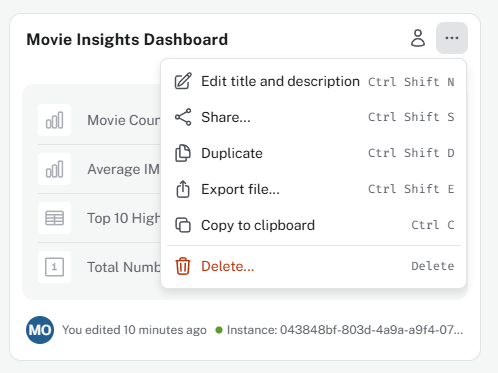
You can export a definition from the menu on the dashboard tile. Use the Export file option to download a JSON file containing your dashboard.
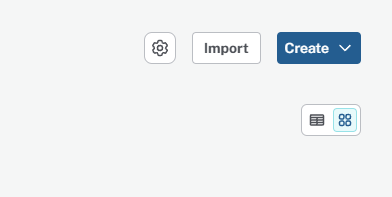
Use the Import function to create a dashboard from a JSON definition. You can import from a file or paste the JSON directly.
The import dialog will show a summary of the dashboard being imported, including the number of pages, cards, parameters, and filters.

Importing from NeoDash
You can import dashboards created in NeoDash commercial or NeoDash Labs, but some features may not be supported. See Import and export for details.
Check your understanding
When should you add a page?
You are building one dashboard for the same group of stakeholders, but they need separate views (for example, an executive summary and a detailed analyst view). When is adding a new page the best choice?
-
✓ When you want separate sections inside the same dashboard for related audiences and use cases.
-
❏ When you need a completely different dashboard for another team with unrelated goals.
-
❏ When you only want to rename the current dashboard.
-
❏ When you want to import a dashboard JSON from another instance.
Hint
Use a page to organize related views within one dashboard. Create a new dashboard when the audience, purpose, or overall content is truly separate.
Solution
When you want separate sections inside the same dashboard for related audiences and use cases.
A new page is ideal when the views belong together in one dashboard but need to be split by context. Create a new dashboard when the purpose is separate enough that it should stand on its own.
Summary
You explored dashboard pages and how to import and export dashboards.
In the next lesson, you will learn about the different types of cards and visualizations, and how to choose the right one for your data.